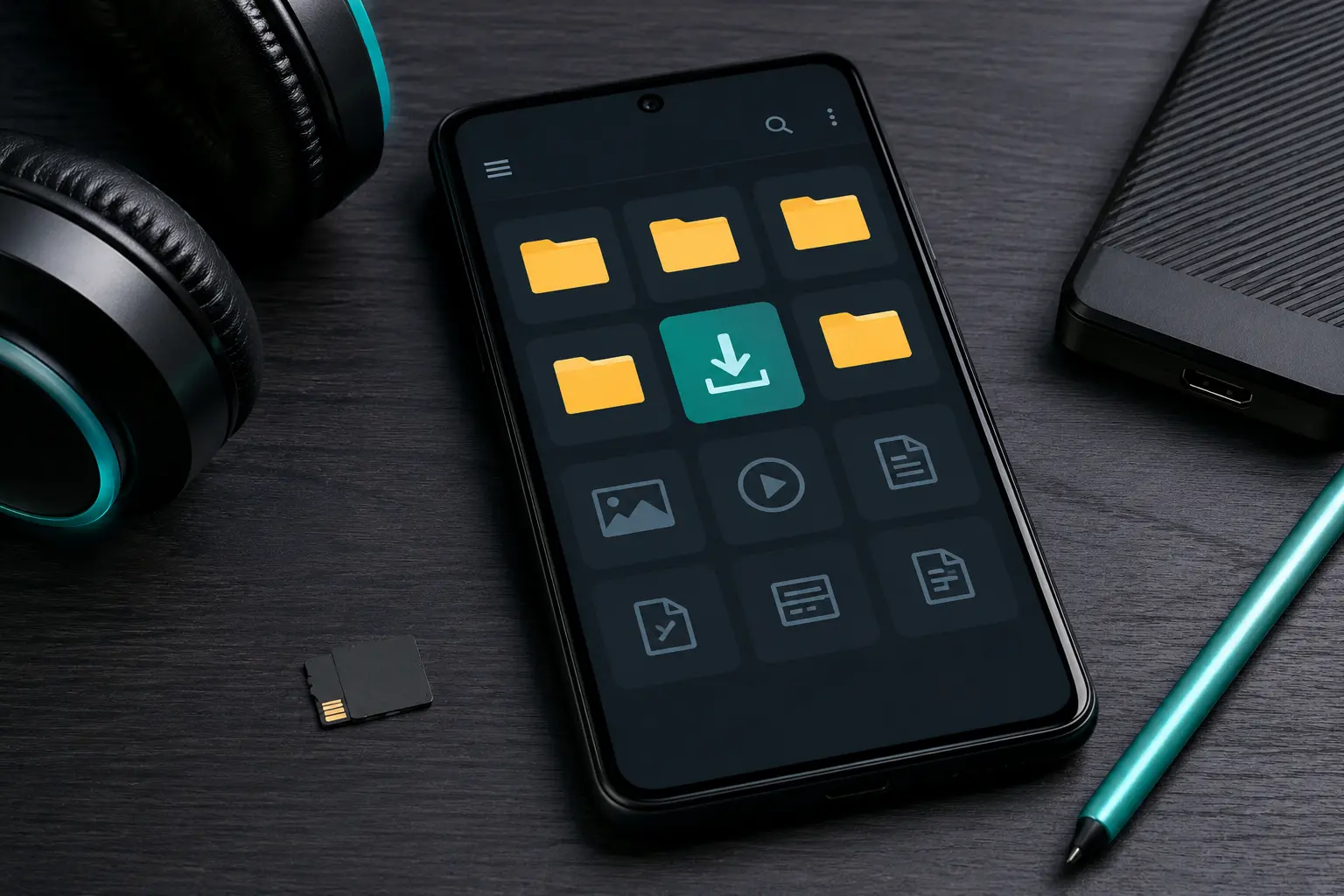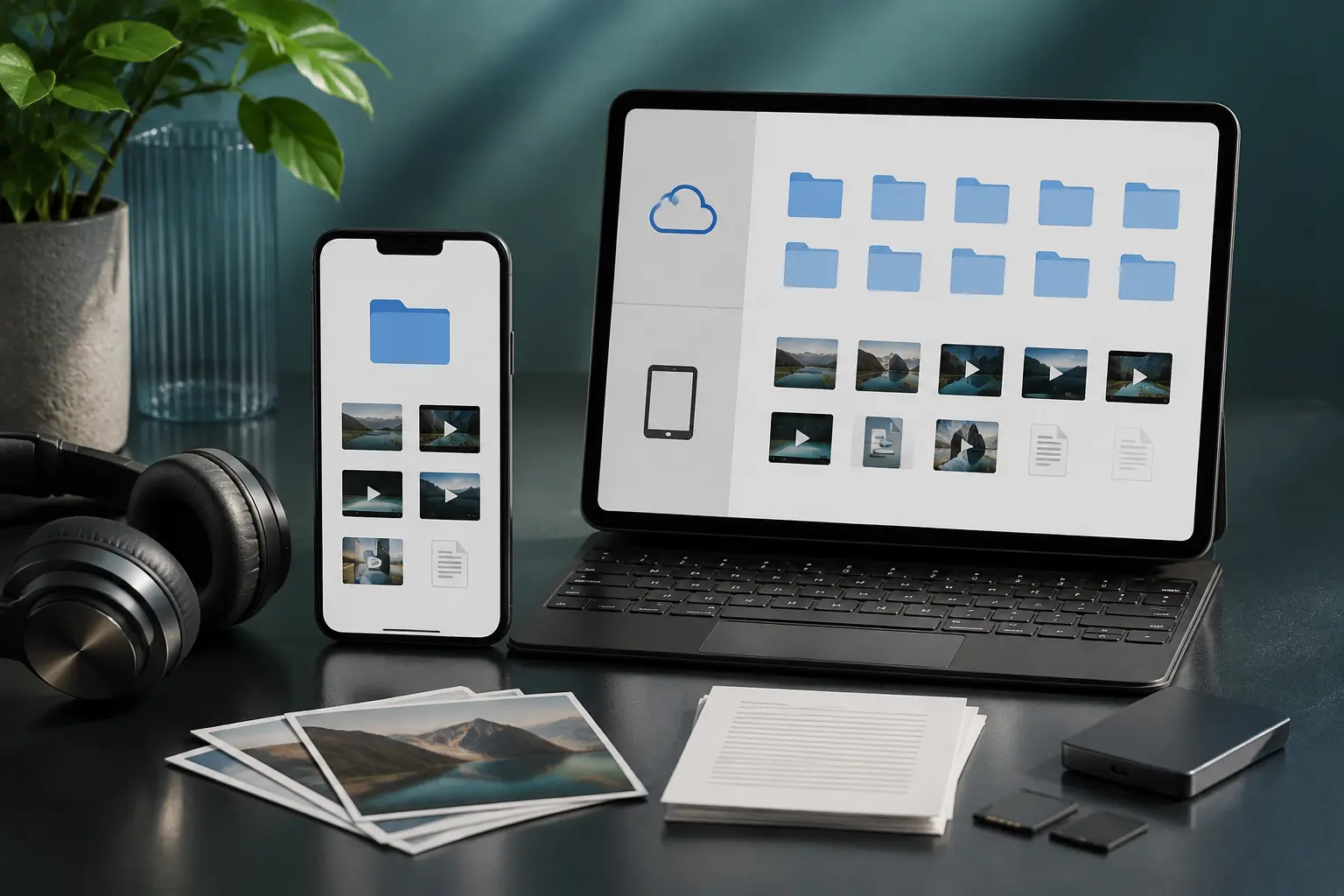
Coming from Android or a desktop computer to iOS can feel disorienting when downloading files from the internet. On an iPhone or iPad, there is no desktop screen to drop files onto, and downloaded MP3s don't automatically appear inside the native Apple Music app. If you've just downloaded an audio track or document and can't figure out where it went, don't worry—Apple provides a dedicated app called Files that manages all your downloads seamlessly. Here is everything you need to know.
1. The Safari Download Manager (The Fastest Shortcut)
When you download any file in Safari on iOS 13 or newer:
- You'll see a small circular blue download arrow (↓) appear on the left side of the address bar at the top or bottom of your screen.
- Tap that download icon to view active downloads and recent files.
- Tap any completed file in the list to play it immediately in Apple's built-in quick-look media player.
- Tap the small magnifying glass icon next to the filename to jump directly to its exact folder in the Files app!
2. Using the Built-in "Files" App
Every iPhone and iPad has Apple's stock Files app installed (it has a blue folder icon). If you can't find it, swipe down on your home screen to open Spotlight Search and type "Files".
- Open the Files app and tap the Browse tab in the bottom right corner.
- Look under Locations:
- On My iPhone > Downloads: This is where files are saved locally on your device's physical memory.
- iCloud Drive > Downloads: If iCloud Drive is enabled for Safari downloads, your files will be stored in the cloud and automatically sync across your iPad and Mac!
3. Why Can't I See Downloaded MP3s in the Apple Music App?
This is the #1 question asked by new iPhone users: "I downloaded an MP3 in Safari, why isn't it in my Apple Music library?"
Due to Apple's strict sandbox security architecture, third-party files downloaded from web browsers cannot inject themselves into Apple Music's proprietary database without syncing through iTunes or the Apple Music app on a Mac or PC. But you have great alternatives:
- Listen directly in the Files app: You can play MP3s in background mode right from the Files app with basic lock-screen playback controls.
- Use VLC for Mobile (Free & Open Source): Install VLC from the App Store. Open the Files app, tap Share on your song, and choose VLC. VLC organizes your music into custom playlists and supports all audio codecs.
- Use dedicated offline players: Free apps like Documents by Readdle or Offline Music Player let you organize full music albums, create playlists, and play songs with screen locked.
4. How to Change Safari's Download Location
Want your downloads saved locally on your phone instead of filling up your 5 GB free iCloud storage? You can easily change this:
- Open Settings on your iPhone.
- Scroll down and tap Safari.
- Tap Downloads (under the General section).
- Select On My iPhone instead of iCloud Drive.
Downloading songs directly in Safari via Tubidy lets you build an offline library on your iPhone or iPad that you can enjoy anytime through the Files app or VLC.
Once your music is safely stored, make sure your collection stays clean and clutter-free with our expert tips on organizing an offline music library.