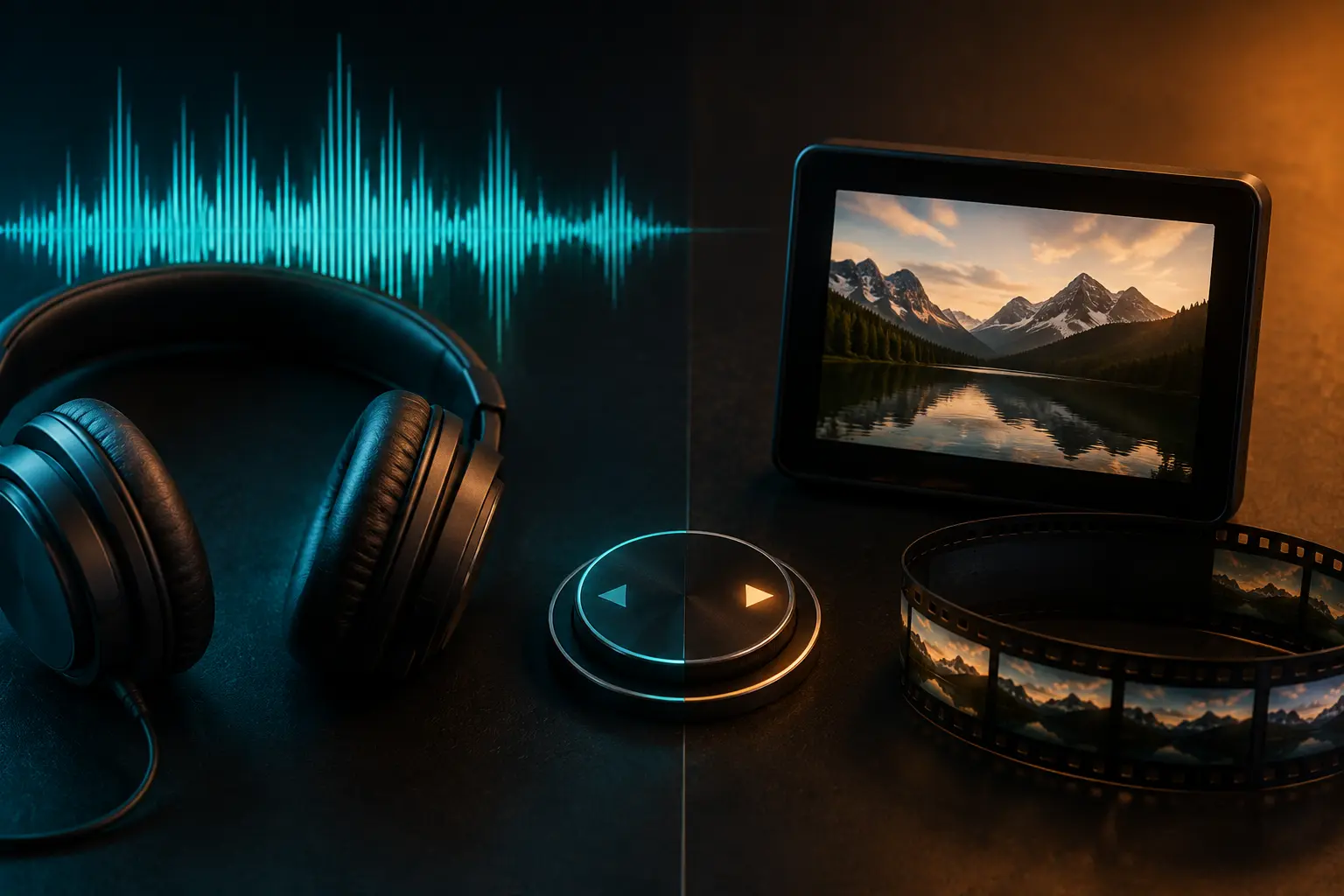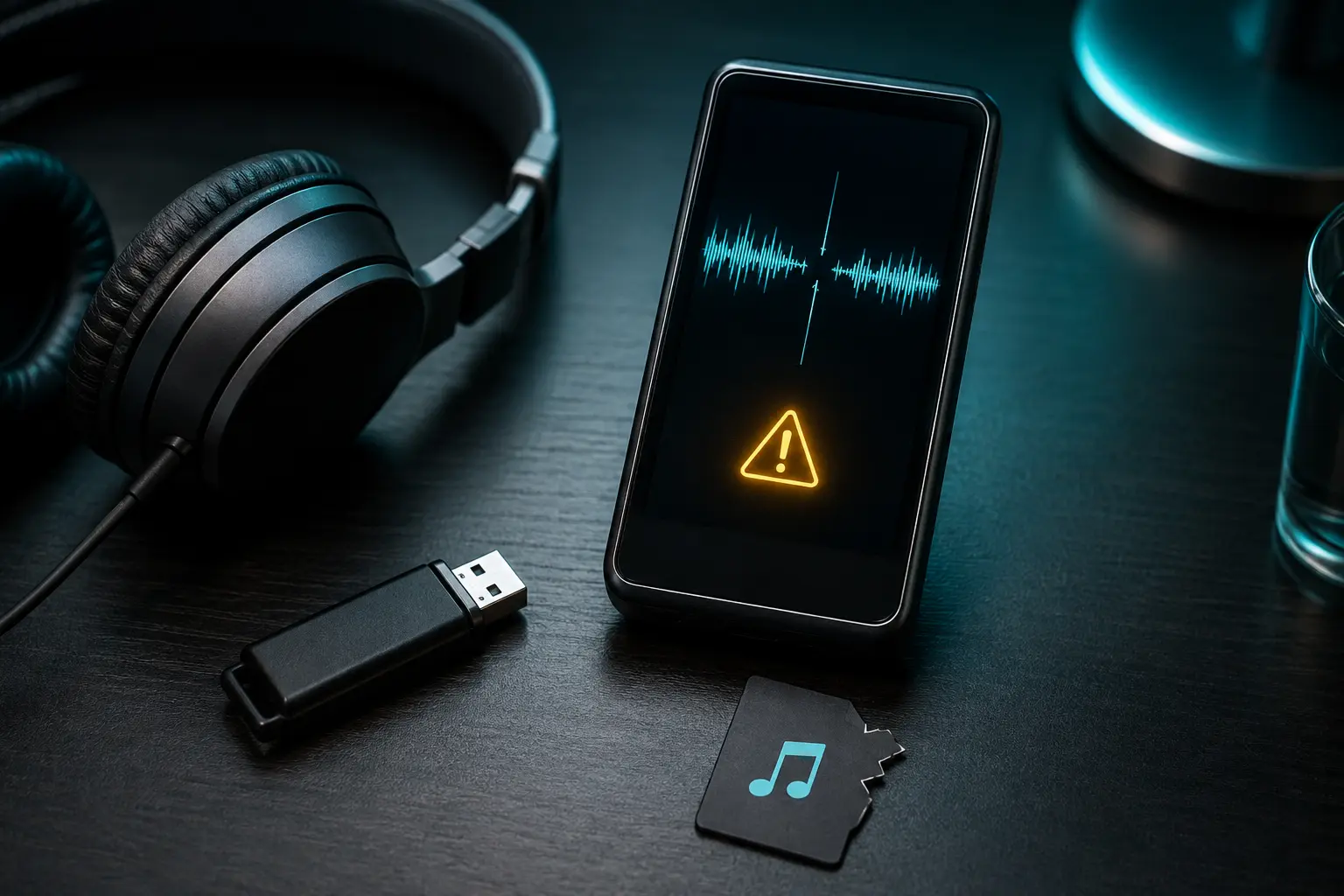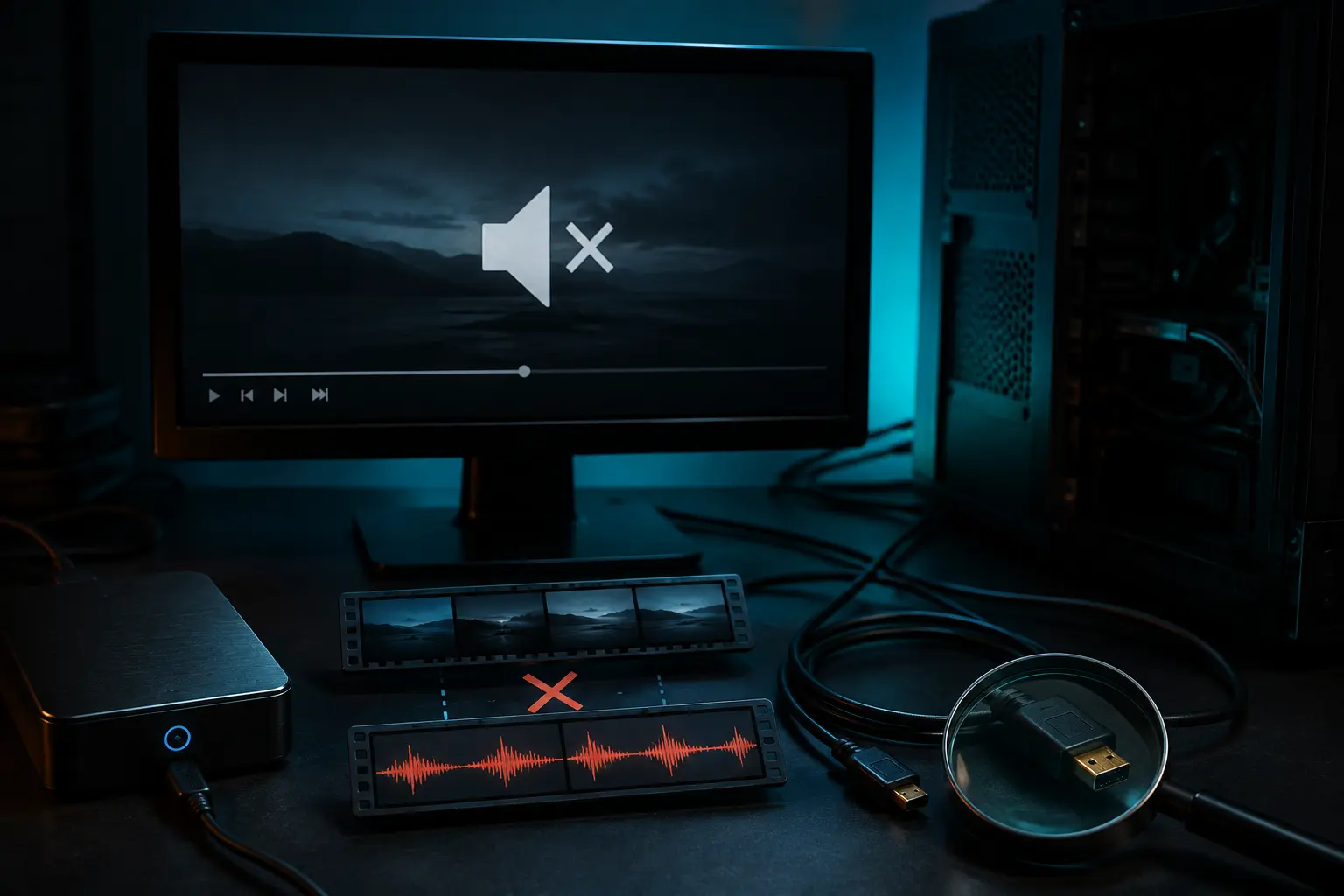
You download a video, open it in your media player, and encounter one of two deeply frustrating problems: either the video plays in crystal-clear quality but is completely dead silent, or the player refuses to open it at all, saying "Unsupported codec" or "File cannot be rendered." Don't delete the file just yet! Most of the time, the video itself isn't broken—the problem usually boils down to missing audio decoders or container settings. Here is how to fix it in minutes.
1. The Missing Audio Codec Problem (AC3, EAC3, and AAC)
An MP4 file is not a single format; it is a container that bundles a video stream (like H.264 or HEVC) and an audio stream together. Video websites and screen recorders frequently encode audio in modern multi-channel formats like AC3 (Dolby Digital), EAC3, or DTS.
- Stock video players on many Android phones and Windows PC default apps (like Windows Media Player or Movies & TV) do not pay licensing fees for certain Dolby audio codecs. As a result, the player decodes the video pictures effortlessly, but skips the unsupported audio track entirely, leaving you with silence.
- The 1-Minute Fix: Download and install VLC Media Player (free, open-source, and available on Android, iOS, Windows, and Mac) or MX Player (with custom codec pack on Android). VLC comes bundled with open-source decoders for virtually every audio and video format in existence. In 95% of cases, opening the exact same file in VLC plays sound immediately with zero conversion needed!
2. Incomplete or Interrupted Downloads
Video files contain critical index data called the "moov atom". In standard MP4 files, this index chunk is written at the very end of the file when the download completes. It tells your player how many frames exist and how the audio syncs with the picture.
- If your mobile connection dropped or your browser crashed while the video was at 98%, the player cannot find the index header and refuses to open the file entirely.
- How to check: Look at the file size. If the expected file was 60 MB and your download stopped at 40 MB, it is incomplete. Re-download the file with a steady connection.
3. HEVC / H.265 Hardware Limitations on Older Devices
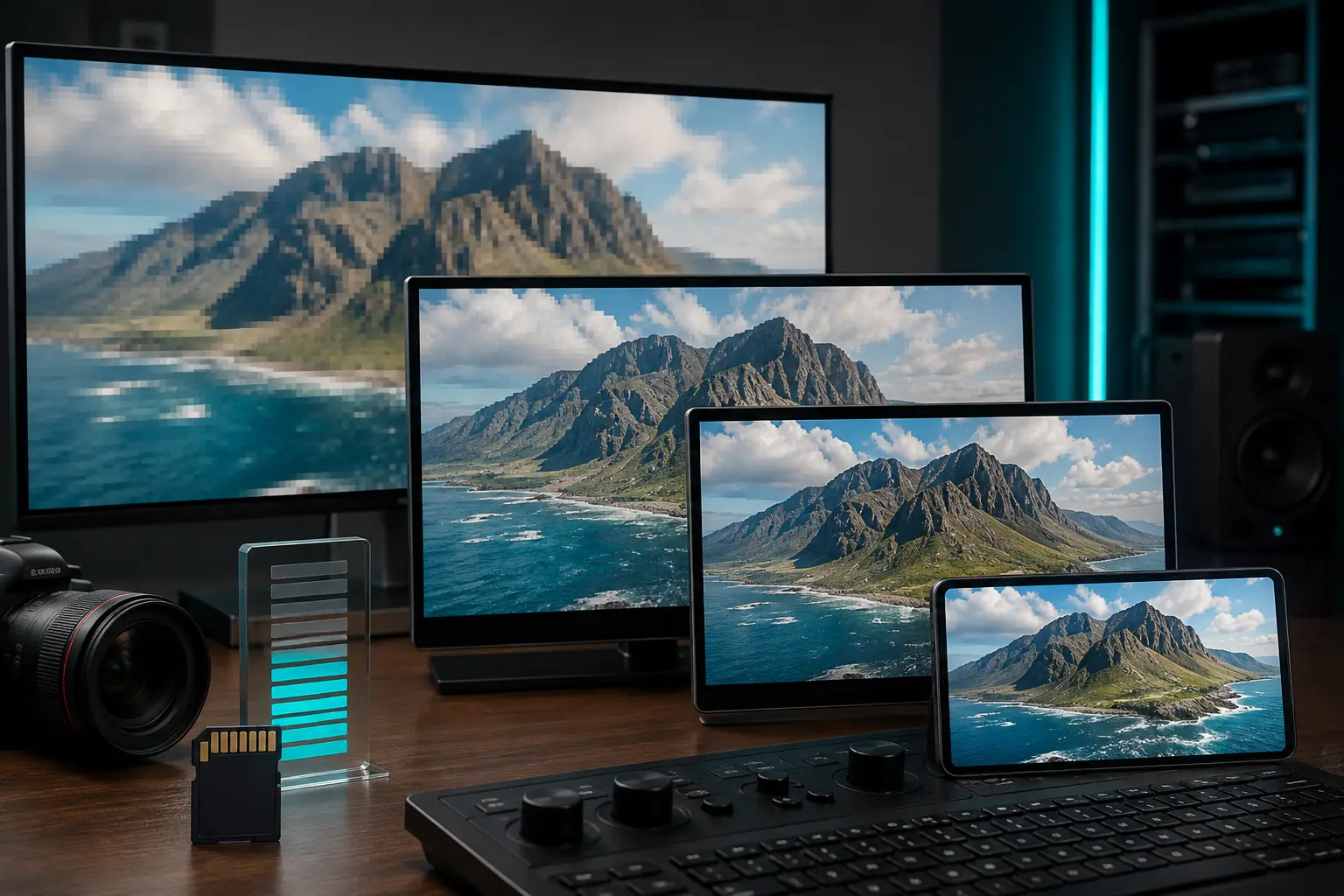
Modern high-efficiency video is encoded in H.265 (HEVC). Older smartphones (manufactured before 2018) or budget laptops lack hardware-accelerated HEVC decoding chips. When they attempt to open a 1080p HEVC MP4, the player will freeze, stutter severely, or display a black screen while audio plays in the background.
- The Fix: Whenever downloading on older hardware, choose standard H.264 / AVC video at 720p or 480p instead of HEVC.
4. Corrupted Cache in Mobile Gallery Apps
Sometimes the video plays fine in a third-party file manager, but the built-in phone Gallery app claims it cannot open the file. This happens when the Android media scanner index gets stuck.
- Go to your phone's Settings > Apps > Media Storage (or Gallery app), clear the app cache, and restart your phone. The media scanner will re-index your newly downloaded video within 2 minutes.
5. Quick Fix Checklist
- Install VLC Media Player on your phone or PC and open the file.
- Verify the downloaded file size matches the full video runtime.
- For a hassle-free experience with standard audio and video codecs, downloading your favorite media through Tubidy helps you avoid corrupted files and missing audio tracks.
- If you only needed the music or interview speech in the first place, skip the video headaches and download the lightweight MP3 instead. See our breakdown on choosing between MP3 and MP4.