Few things are as annoying as downloading a song you're eager to hear, copying it to your phone or car USB drive, and being greeted by an error message: "Unsupported Format", "File Corrupt", or worse—the player simply skips the track silently. If the file has a .mp3 extension, shouldn't every music player on earth be able to play it? Not necessarily. Here are the most common reasons why MP3 files fail to play and how to fix them quickly.
1. The "Fake Extension" Problem (Renamed Files)
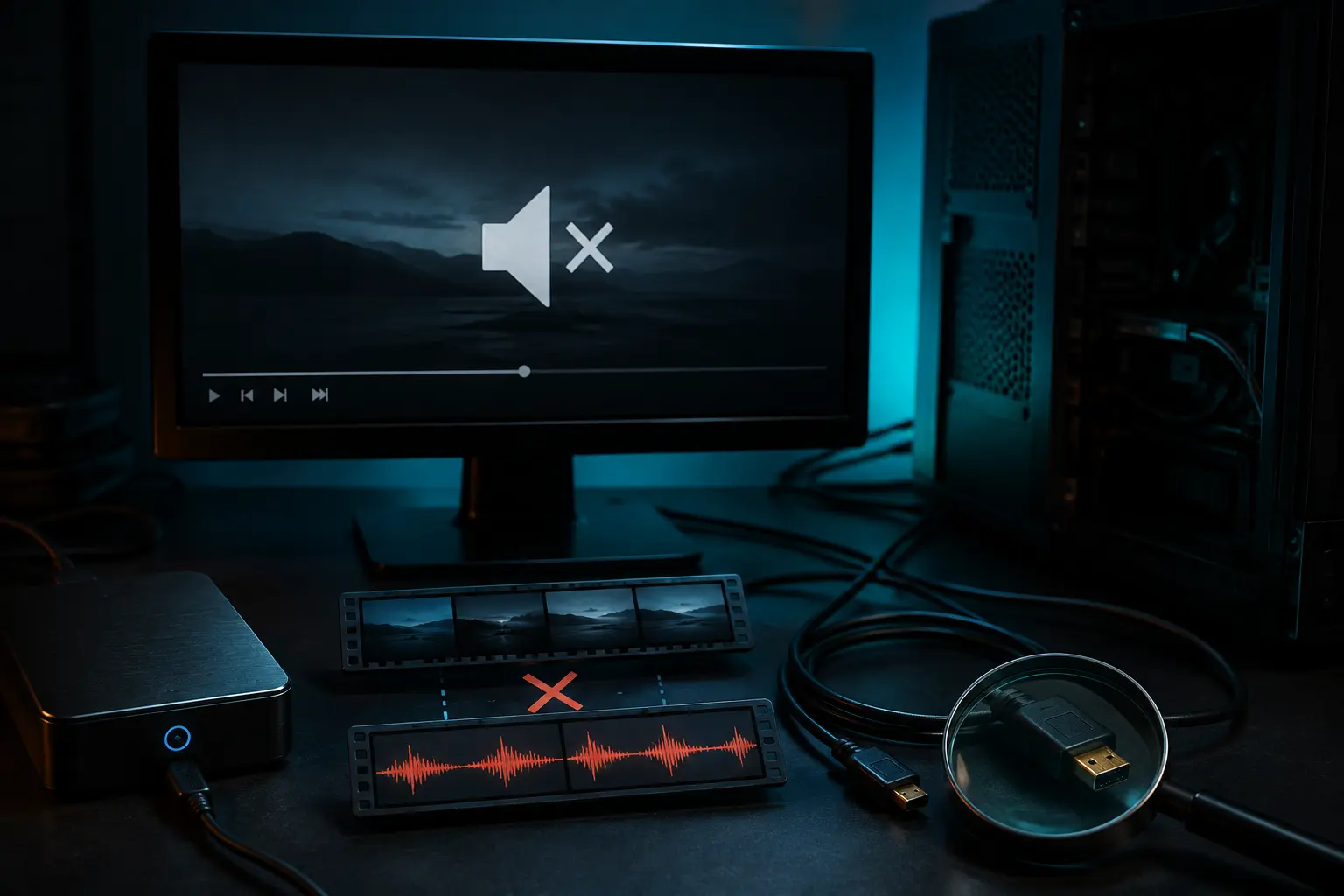
By far the most frequent culprit encountered by users on tech forums: the file isn't actually an MP3 at all! Some conversion tools or video sites download an AAC, Opus, M4A, or even HTML webpage and simply slap .mp3 on the end of the filename.
- Modern PC software (like VLC or Chrome) might figure out the true audio stream inside, but car stereos, older MP3 players, and standard Android stock players will throw an error immediately because the internal audio codec doesn't match the MP3 specification.
- How to check: Open the file on a PC in a free tool like MediaInfo or VLC Player (click Tools > Codec Information). If the audio stream says "AAC" or "Opus" instead of "MPEG Audio Layer 3", you need to properly convert it rather than just renaming it.
2. Incomplete or Corrupted Downloads
If your internet hiccuped or disconnected while saving the track, the browser may have closed the file before writing the end-of-file trailer (footer). When a media player reaches the abrupt cutoff, it errors out.
- Check the file size: If the song is supposed to be a 4-minute track but the file is only 400 KB or 1 MB, it stopped downloading halfway through.
- The Fix: Delete the file, clear your browser cache, and re-download it over a stable Wi-Fi or mobile connection.
3. Corrupted or Incompatible ID3 Metadata Tags
MP3 files contain metadata tags (ID3v1, ID3v2.3, ID3v2.4) that store artist names, album titles, lyrics, and embedded album art. Unfortunately, many older car head units and budget audio players choke when encountering:
- ID3v2.4 tags: Many older USB stereos only read the older ID3v2.3 standard.
- Giant embedded artwork: If an MP3 has an uncompressed 4K album art image (say, 5 MB) embedded in its header, low-memory car stereos run out of buffer memory before reaching the actual audio stream!
- The Fix: Use a free tag editor like Mp3tag. Select the song, save it as ID3v2.3, and ensure the embedded cover art is resized to 500x500 pixels.
4. Unsupported Bitrate or Sample Rates
Most players support standard sample rates of 44.1 kHz (CD quality) and 48 kHz. However, if an audio file was exported with non-standard rates (like 22.05 kHz, 32 kHz, or 96 kHz), older hardware decoders simply cannot process the audio clock. Similarly, while 320 kbps CBR is universal, some older players fail on obscure VBR (Variable Bitrate) header indexes.
5. USB Drive File System Incompatibility (Car Stereos)
If your MP3s play perfectly on your laptop and smartphone but your car USB port refuses to see them, the issue is usually your flash drive's file system, not the songs themselves!
- Most car stereos cannot read drives formatted with NTFS or exFAT.
- The Fix: Back up your music to your computer, format the USB drive as FAT32, and copy the songs back over. Keep folders under two levels deep (e.g.,
USB/Artist/Album/Song.mp3).
Quick Troubleshooting Checklist
- Try opening the file in VLC Media Player. If VLC can't play it, the file is genuinely corrupt and must be re-downloaded.
- Whenever you encounter corrupted or unplayable files from sketchy download sites, turning to a clean, reliable download platform like Tubidy ensures your audio files play smoothly on every player.
- Confirm the file size matches an authentic audio track (normally 4 MB to 12 MB).
- Check that your download finished 100% without network drops—especially on mobile connections. Read our guide on managing downloads on slow networks for reliable downloading tips.